Bin
A folder inside the Media Pool used to organise your footage. Create bins for "Interviews", "B-Roll", "Music" etc.
Clip
A single piece of media — a video file, audio file, or still image — placed on the timeline.
Cut
The most basic edit: one clip ends and the next begins instantly. No transition. Used 90%+ of the time by professionals.
Cross Dissolve
A transition where one clip fades out as the next fades in. Use sparingly. Drag from Effects Library between two clips.
dBFS
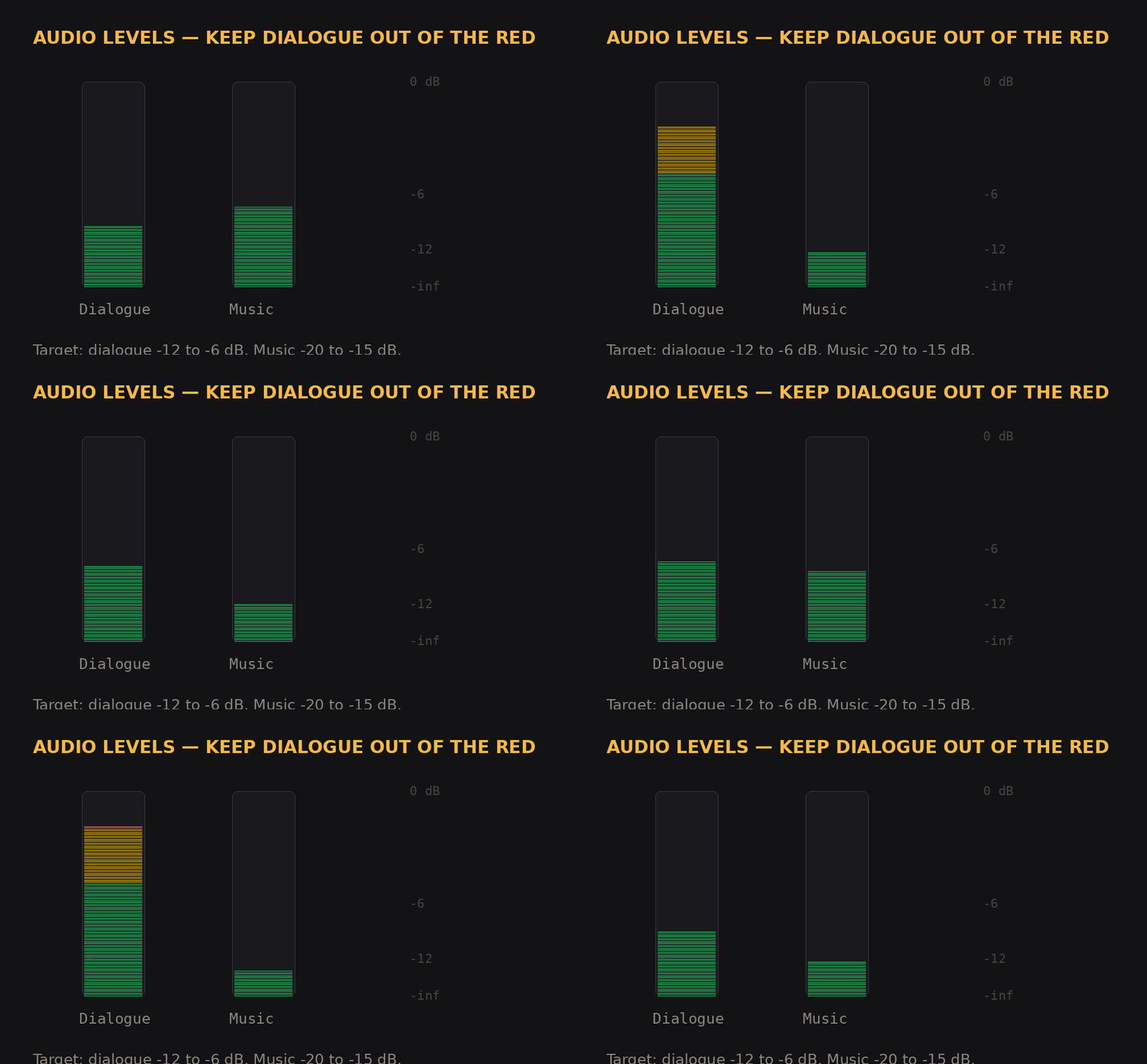
Decibels Full Scale. How digital audio levels are measured. 0 dBFS is the maximum before distortion. Keep dialogue at −12 to −6 dBFS.
Deliver Page
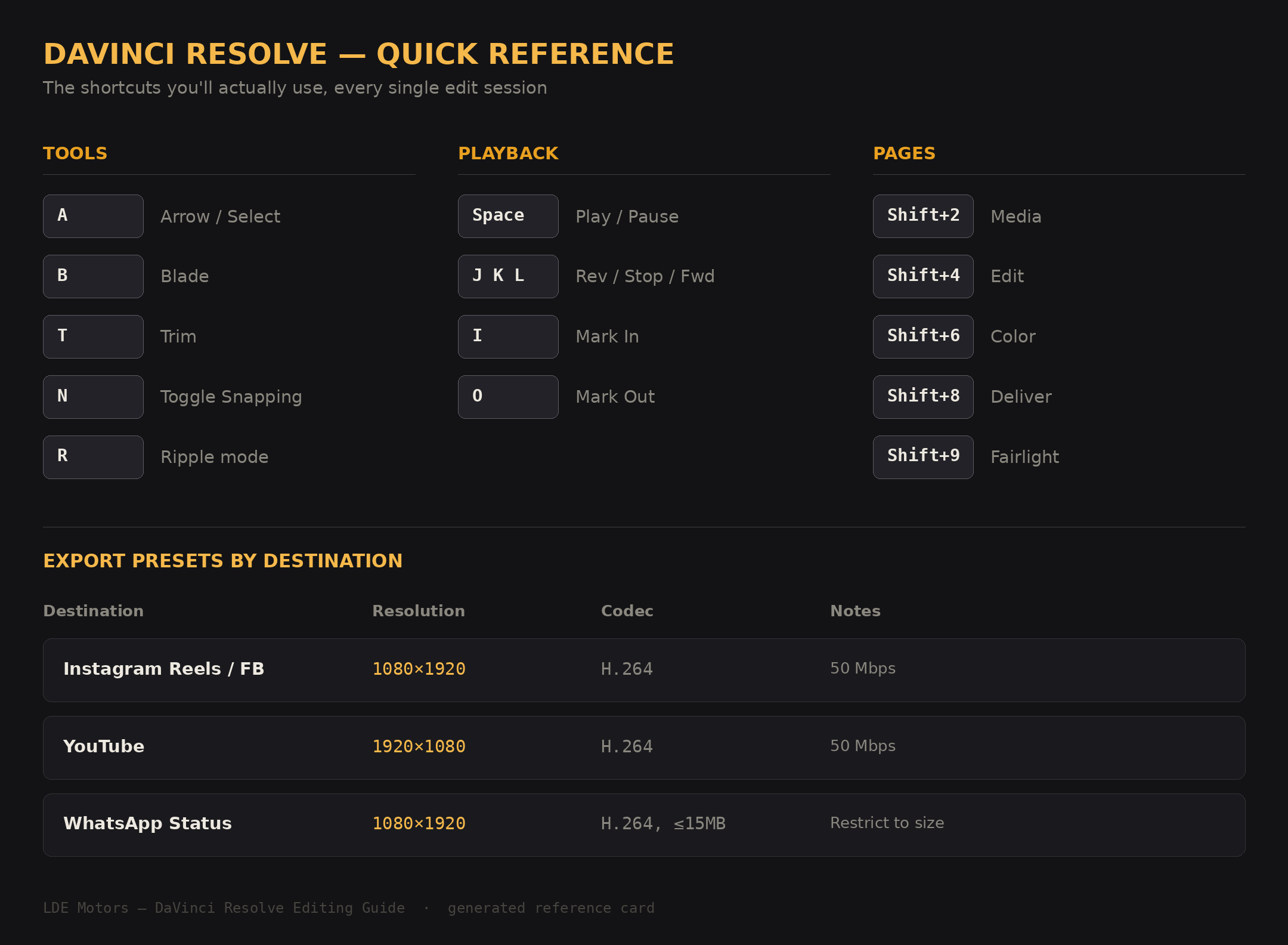
The DaVinci Resolve page (Shift+8) where you configure and start the export/render of your finished video.
Edit Point
The boundary between two clips on the timeline — where one ends and the next begins. Press ↑/↓ to jump between edit points.
Fairlight
DaVinci Resolve's dedicated audio editing page. A full DAW built into Resolve. Not needed for basic audio work.
Frame
One single still image in a video. At 25fps, there are 25 frames per second. Cutting one frame earlier or later can significantly change the feel of an edit.
Frame Rate (fps)
How many frames are shown per second. Common values: 24fps (cinematic), 25fps (PAL/most of world), 30fps (NTSC/US content), 60fps (smooth/sport).
Gap
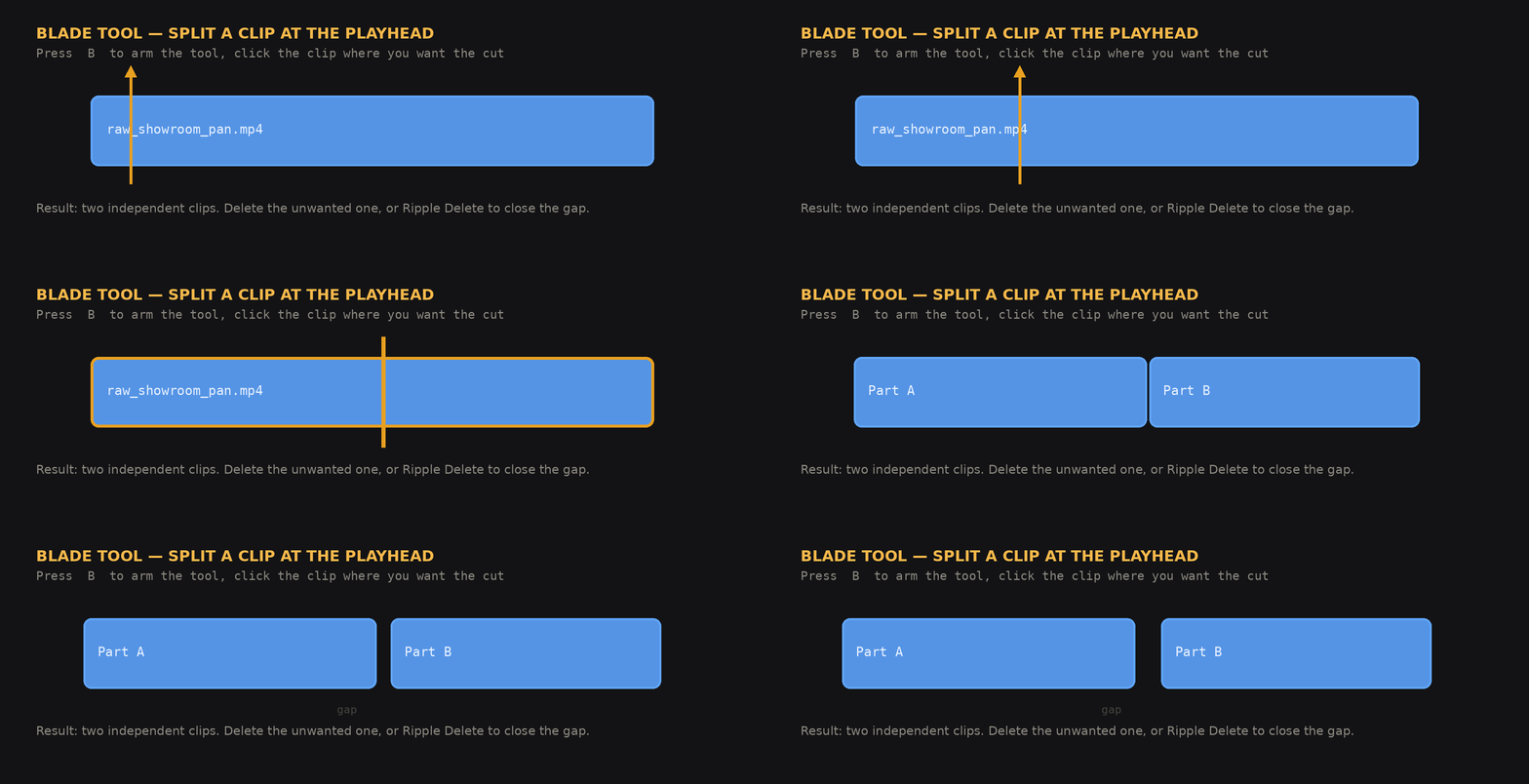
Empty space on the timeline between clips. Shows as black in the viewer. Remove gaps with Ripple Delete or right-click → Close Gap.
H.264 / H.265
Video compression codecs. H.264 is the standard for web/YouTube delivery. H.265 is newer, smaller file size, but slower to export. Use H.264 for most exports.
Inspector
The panel (top-right in Edit page) showing all adjustable properties of the selected clip: position, scale, rotation, opacity, audio volume.
In / Out Points
Markers you set in the Source Viewer (I and O) to define which part of a clip to use before adding it to the timeline.
J-K-L Keys
Playback controls: J = play backwards, K = stop, L = play forwards. Pressing L multiple times increases speed. Essential for scrubbing through footage fast.
Keyframe
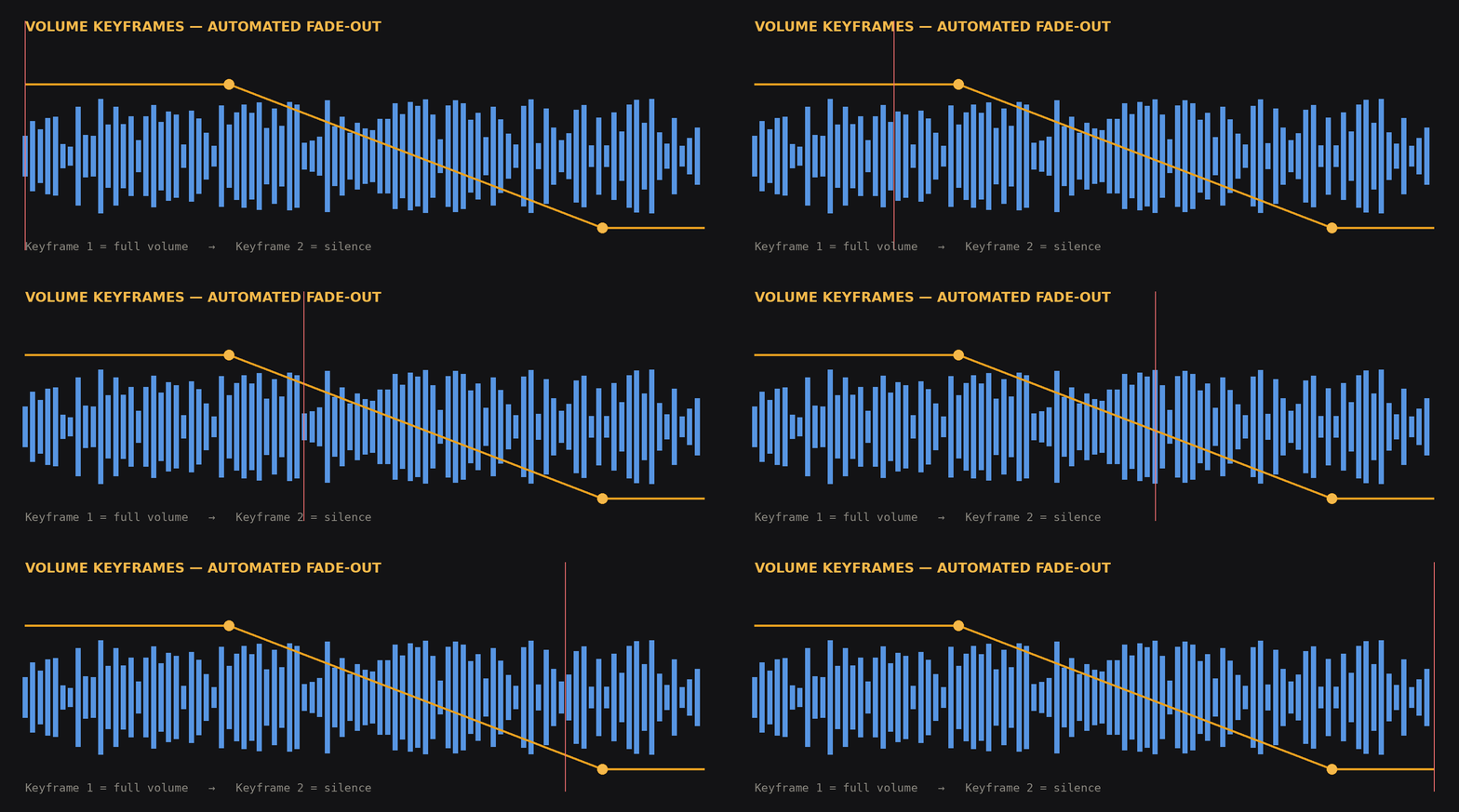
A point in time on a clip where you set a specific value (e.g. volume = 0). Resolve smoothly interpolates between keyframes, creating fades or animation.
Media Pool
The panel where all imported media lives, organised into bins. Like a project library. Everything starts here before going to the timeline.
Offline Media
When Resolve can't find the original file for a clip — usually because you moved or renamed the file after importing. Clips show as red. Fix via right-click → Relink.
Overwrite vs Insert Edit
Overwrite (F10) replaces existing timeline content with the new clip. Insert (F9) pushes everything along to make room. Insert preserves what's already there.
Page
DaVinci Resolve's major workspaces accessed via the bottom bar: Media, Cut, Edit, Fusion, Color, Fairlight, Deliver. Each is a specialised environment.
Playhead
The red vertical line on the timeline that shows your current position. The viewer shows the frame at the playhead position.
Proxy Media
Low-resolution copies of your footage that Resolve can play back smoothly on slower computers. Renders at full quality on export. Enable in Preferences → System.
Render Queue
The list of export jobs in the Deliver page. Add multiple exports, then click "Start Render" to process them all in one go.
Resolution
The pixel dimensions of your video. 1920×1080 = 1080p HD. 3840×2160 = 4K UHD. Set in Project Settings before starting.
Ripple Trim / Ripple Delete
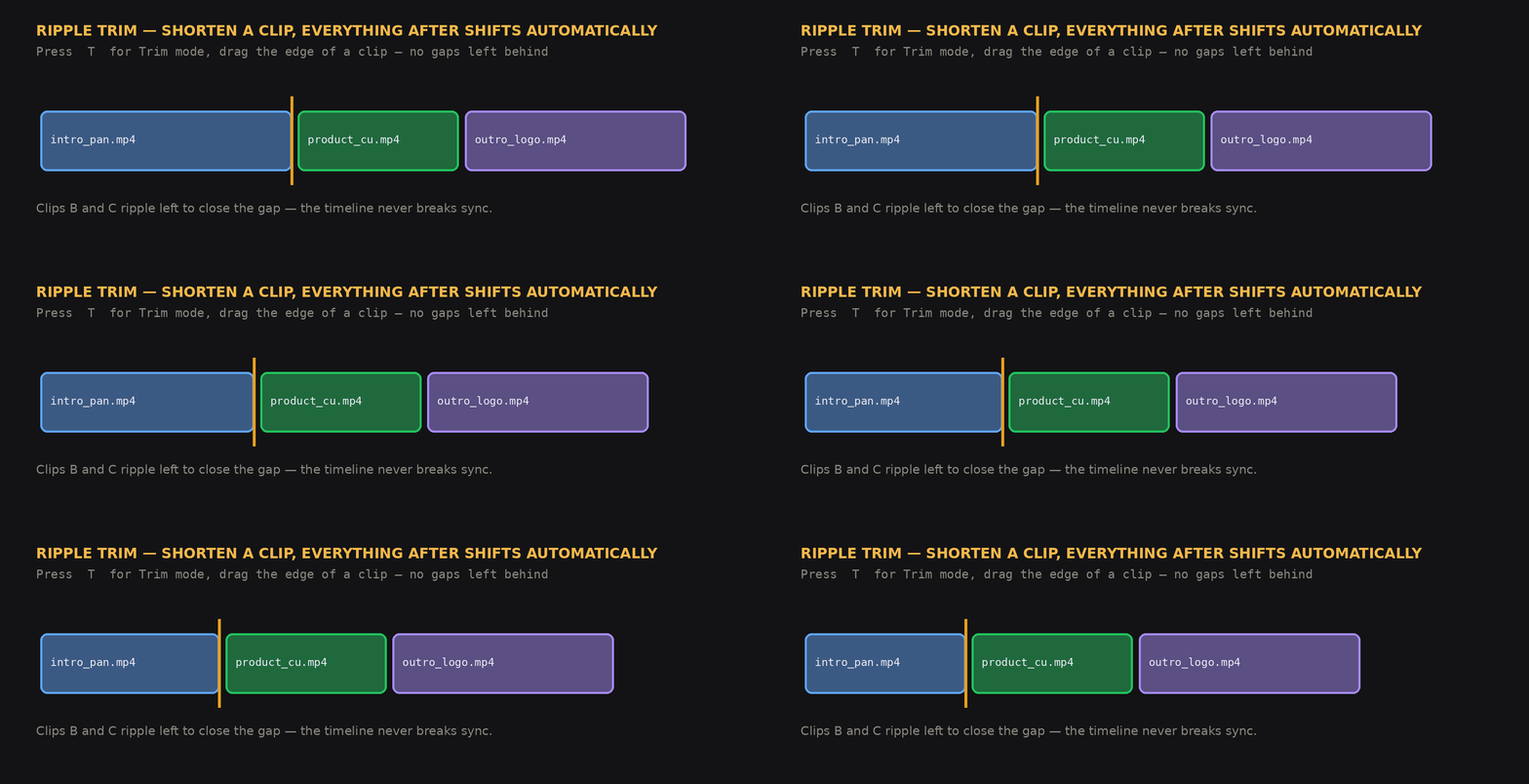
Editing actions that automatically close gaps. Ripple trim shortens a clip and pulls everything downstream back. Ripple delete removes a clip and closes the gap.
Roll Edit
Moving an edit point between two clips without changing overall timeline duration. One clip gets longer as the adjacent one gets shorter by the same amount.
Rough Cut
The first messy pass of an edit where you lay out content in rough order without worrying about precise timing. Always your starting point.
Slip Edit
Changing which frames of a clip appear on the timeline without moving the clip or changing its duration. Like sliding the content inside a fixed window.
Snapping
A feature (toggle with N) that makes clips magnetically stick to the edges of other clips, markers, and the playhead for precise alignment.
Source Viewer
The left viewer in the Edit page for previewing individual clips from the Media Pool before adding them to the timeline. Set In/Out points here.
Timeline
The main editing area where clips are arranged horizontally to form your video. Video tracks (V1, V2…) on top, audio tracks (A1, A2…) below.
Timecode
A timestamp displayed as HH:MM:SS:FF (hours, minutes, seconds, frames). Used to navigate precisely to a specific moment in your timeline.
Title
A text overlay clip placed on a video track above your footage (V2 or higher). Added from Effects Library → Toolbox → Titles. Edited in the Inspector.
Track
A horizontal lane in the timeline. Video tracks (V1, V2…) stack vertically — higher tracks appear on top. Audio tracks (A1, A2…) are below the video tracks.
Transition
An effect between two clips (e.g. Cross Dissolve, Wipe). Added by dragging from the Effects Library onto an edit point. Use rarely — a straight cut is usually cleaner.
Volume Rubber Band
The thin horizontal line across every audio clip on the timeline. Drag up/down to adjust clip volume. Ctrl/Cmd+click to add keyframes for fades.
Waveform
The visual representation of audio — the jagged shape inside audio clips on the timeline. Taller = louder. Use it to find specific sounds when syncing audio.
Fusion
DaVinci Resolve's built-in visual effects and motion graphics page (Shift+5). Uses a node-based system to create animated text, transitions, and compositing effects. Start here in Month 2 — not before.
Power Bin
A special bin (View → Show Power Bins) that persists across all Resolve projects. Save your branded title templates here once — they're available in every future project. The single biggest time-saver for repeat content creators.
Lower Third
A text overlay positioned in the lower third of the video frame, typically showing a name, brand, or location. Standard format for dealership branding: "LDE Royal Enfield | Lucknow". Built from a Text+ clip in the Titles section of the Effects Library.
Vertical Timeline (9:16)
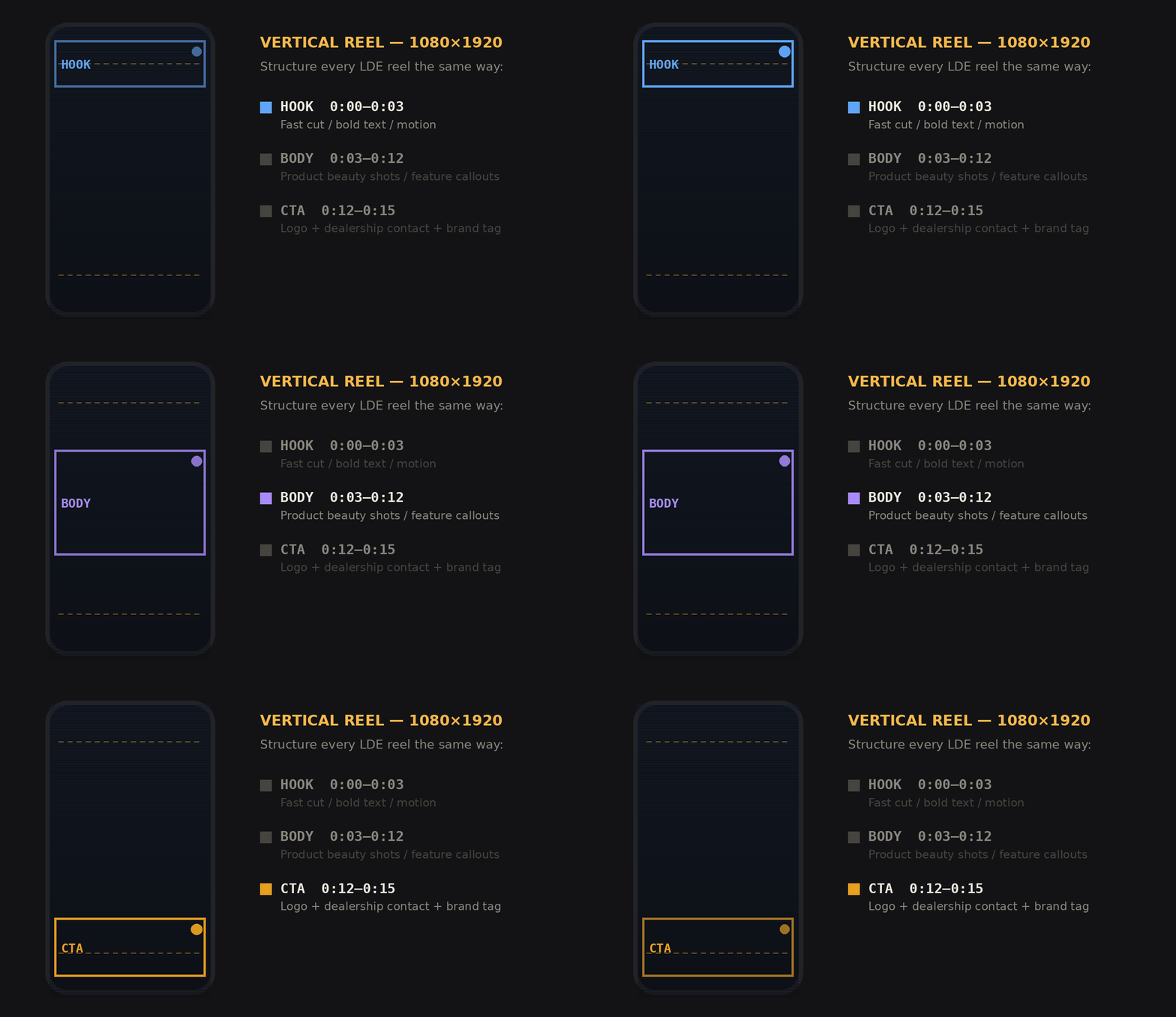
A project/timeline set to 1080×1920 pixels — portrait orientation for Instagram Reels, YouTube Shorts, WhatsApp Status. Set in Project Settings → Master Settings → Timeline Resolution before creating your first timeline.
Text+
A Resolve title generator (found in Effects Library → Toolbox → Titles) that supports more customisation than basic Text. Supports Fusion integration for animation. The standard choice for lower thirds and title overlays.
Volume Rubber Band
The thin horizontal line across every audio clip on the timeline. Drag up/down to adjust clip volume. Ctrl/Cmd+click to add keyframes for fades.
Restrict to (File Size)
A Deliver page setting that caps the exported file to a specified size in MB. Essential for WhatsApp (16MB limit). Resolve automatically adjusts bitrate to hit the target size.
CUDA
NVIDIA's GPU acceleration framework used by DaVinci Resolve. Enable in Preferences → System → Memory and GPU. With a GTX 1650, using CUDA instead of CPU processing makes playback and rendering significantly faster.
No terms found.