Start Here

Zero to First Cut

What DaVinci Resolve is and what you'll learn

DaVinci Resolve is a professional video editing application made by Blackmagic Design. It's free, industry-standard, and used for everything from YouTube videos to Hollywood films. This guide is customised for LDE Motors marketing work — repurposing clips into Reels for Royal Enfield, Bajaj, and Tata brands. The focus is on the Edit page, Titles, and Deliver.

7
Modules
3
Brands
40+
Shortcuts
13
Quiz Qs

Curriculum

Module 01
The Interface Beginner
Understanding DaVinci Resolve's pages, panels, and how to navigate without getting lost. We'll cover the Media Pool, Source Viewer, Timeline, and Inspector.
Module 02
Import & Organise Beginner
Importing footage, creating bins, setting up a project, and understanding why you should never move files after importing.
Module 03
Basic Editing Edit
Adding clips to the timeline, trimming, splitting, moving clips, and using the basic editing tools (arrow, blade, trim).
Module 04
Audio Basics Audio
Adjusting volume, syncing audio, muting tracks, and adding background music — without needing the Fairlight page.
Module 05
Titles & Export Export
Adding text titles, basic transitions, and rendering your final video using the Deliver page for YouTube, Instagram, or local files.
Module 06
Marketing Reels LDE Motors
Vertical 9:16 timelines, reusable branded title templates for all three LDE brands, Power Bins for saved templates, and correct export presets for Instagram Reels, Facebook, and WhatsApp.
Module 07
Your Learning Roadmap Roadmap
A week-by-week learning curve built for your actual situation — home laptop editing, office planning, what to skip, and when to move to Fusion for animated text.
🖥️
Your laptop (Ryzen 5 4600H + GTX 1650 + 16GB RAM) is capable. Before your first project: open Preferences → System → Memory and GPU → set GPU processing to CUDA and confirm it shows your GTX 1650 (not the integrated Vega). This alone makes the difference between smooth and laggy playback.
Download DaVinci Resolve 19 (free) from blackmagicdesign.com. Office PC can't run it — use office time for planning, scripting, and clip selection. Use home laptop for all actual editing.
Module 01

The Interface

Click any zone to understand what it does

DaVinci Resolve is built around Pages — the icons at the very bottom of the screen. Each page is a specialised workspace. As a beginner, you'll mostly use the Edit page (or Cut page for quick edits). Click any zone below to learn about it.

DaVinci Resolve — Edit Page

Media Pool

All your imported footage, audio files, and images live here. Like a project library.

  • Right-click → Add Bin to create folders (e.g. "Interviews", "B-Roll", "Music")
  • Drag any file from Finder/Explorer here to import it
  • Double-click a clip to open it in the Source Viewer
  • Switch between thumbnail and list view with the icons at the top

Source Viewer

Preview individual clips before placing them in your timeline. Use it to select only the best part of a long clip.

  • Press I to mark an In point (where to start)
  • Press O to mark an Out point (where to end)
  • Then drag or press F9/F10 — only that section goes to the timeline
  • Space to play/pause, J-K-L for speed control

Timeline Viewer

Shows your final video output at the playhead position. This is your "output monitor".

  • Timecode display shows exactly where you are in the edit
  • Right-click → change playback quality if it stutters
  • Press Shift+` for full-screen preview
  • Updates in real-time as you make edits

Inspector

When a clip is selected on the timeline, the Inspector shows all its adjustable properties.

  • Video tab: position, zoom, rotation, opacity
  • Audio tab: volume, pan
  • Effects tab: any effects applied to the clip
  • Every change here only affects the selected clip

Toolbar

The tools you use to interact with clips on the timeline. The three you'll use constantly:

  • Arrow (A) — select and move clips
  • Blade (B) — cut a clip into two pieces
  • Trim (T) — ripple trim, closes gap automatically
  • Always press A when done with any other tool

Timeline

The heart of editing. Clips are arranged left→right (earlier→later) across multiple stacked tracks.

  • Video tracks (V1, V2…) on top — higher tracks cover lower ones
  • Audio tracks (A1, A2…) below the video tracks
  • The red vertical line is the playhead
  • Ctrl+Scroll (Cmd+Scroll on Mac) to zoom in/out

Page Bar

The row of icons at the very bottom of the screen — each opens a different workspace.

  • Media (Shift+2) — import and organise files
  • Cut (Shift+3) — fast edit mode for quick assembly
  • Edit (Shift+4) — main editing workspace
  • Color (Shift+6) — colour grading
  • Deliver (Shift+8) — export your finished video

Effects Library

Open with Shift+8 or the toolbar button. Contains all built-in transitions, titles, and filters.

  • Toolbox → Video Transitions — drag between two clips for a crossfade
  • Titles — drag onto the timeline to add text overlays
  • Filters — effects applied to clips (blur, glow, etc.)
  • Avoid over-using transitions — a straight cut is almost always cleaner

The Timeline Up Close

Below is what a typical timeline looks like. Coloured clips represent different track types. The red line is the playhead.

Sample Edit Timeline — 00:00 to 00:40
00:0000:1000:2000:3000:40
Title
Intro text
End card
V1
Clip A
Clip B
Clip C
A1
Cam audio
Cam audio
Cam audio
A2
Background music
Module 02

Editing Workflow

Do things in this order — it matters more than you think

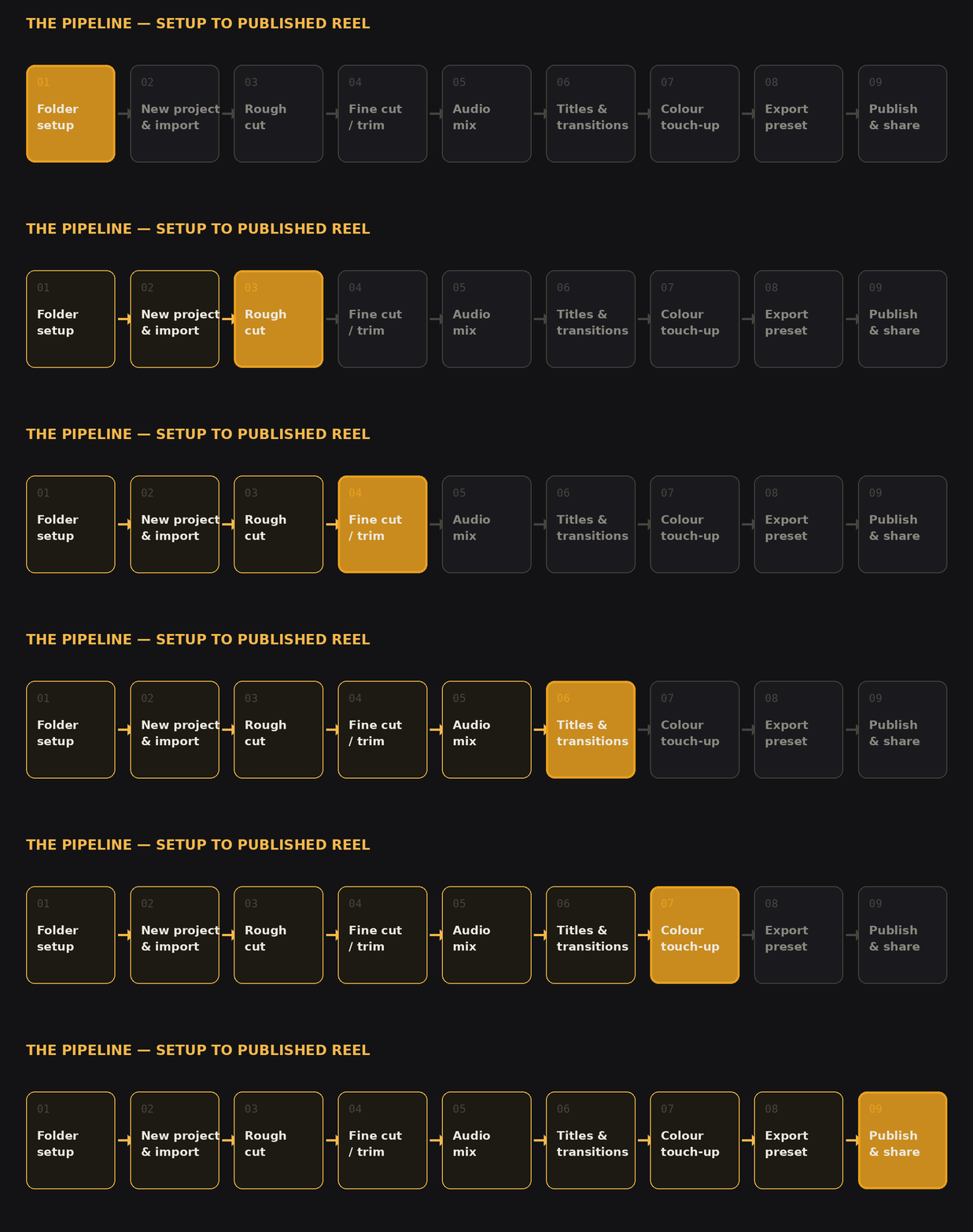
Professional editors follow a consistent workflow. Doing things out of order causes real problems — like moving files after importing and breaking all your media links. Here's the full process from raw footage to exported video.

1
Set up your project folder
Before opening Resolve, create a folder on your drive. Inside it, create subfolders: Footage, Audio, Exports. Copy all your raw files into these. Never edit from your Desktop or Downloads folder.
Rule: all media for a project lives in one folder. Never scatter files.
2
Create a new project in Resolve
Open Resolve. On the Project Manager screen, click + and name your project. Go to File → Project Settings and set Timeline Resolution (1920×1080 for HD) and Frame Rate (match your camera — usually 25fps or 30fps).
Set resolution and frame rate once. Changing them later breaks things.
3
Import your media
Go to the Media page (Shift+2). Navigate to your project folder in the left panel. Drag files into the Media Pool. Create bins (right-click → Add Bin) to keep footage categorised.
Never move files on your computer after importing — Resolve will lose the link.
4
Create a timeline
On the Edit page (Shift+4), right-click in the Media Pool → New Timeline. Name it (e.g. "v1_main_edit"). Or drag a clip directly to the timeline area — Resolve will offer to match settings to the clip. Say yes.
5
Assemble your rough cut
This is the messy first pass. Drag your best clips to the timeline in rough order. Don't worry about perfect edits yet — just get the story structure right. Use the Source Viewer to mark In/Out points first.
The rough cut should be 2–3× longer than your target. You'll cut it down.
6
Fine cut — trim and tighten
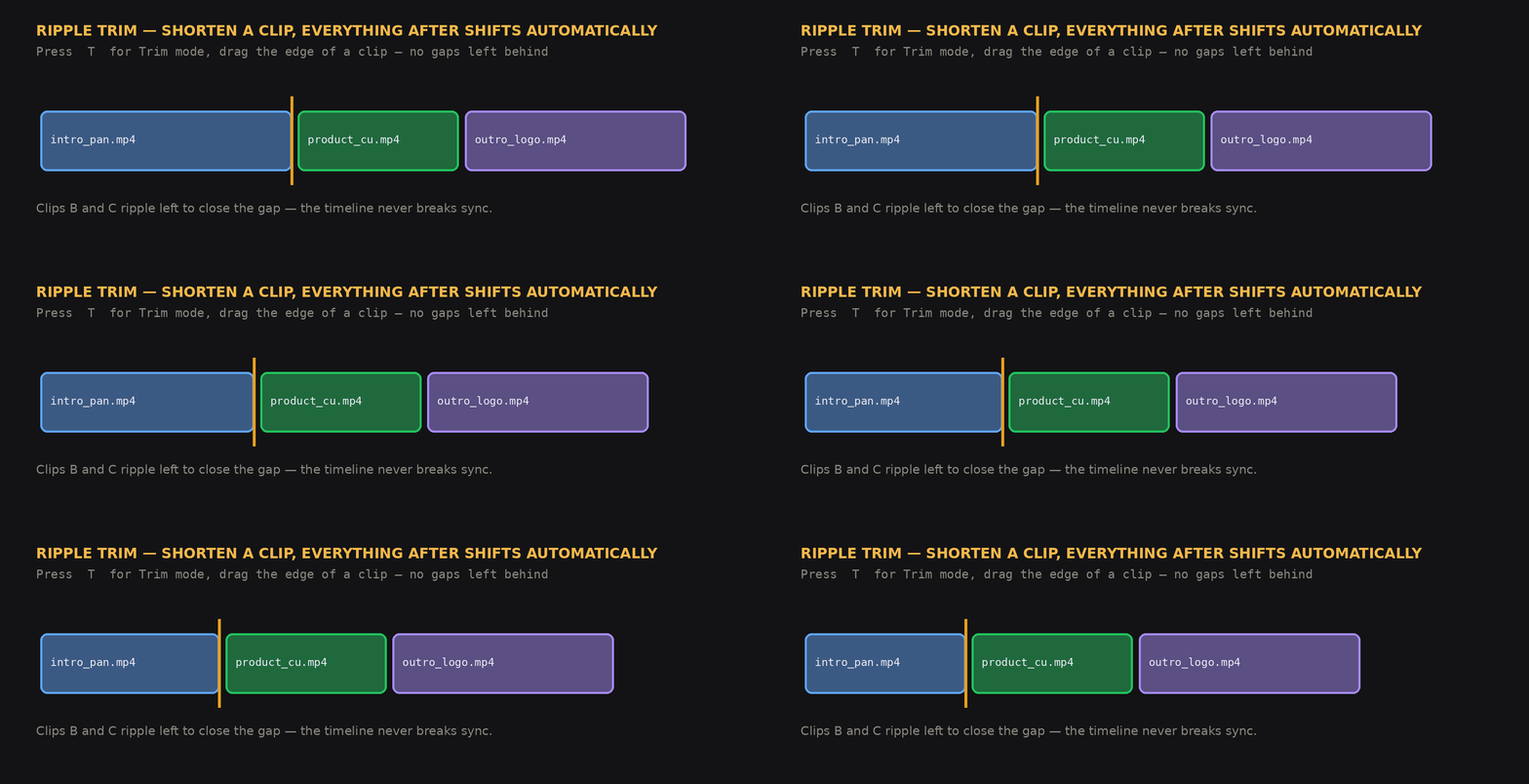
Go through clip by clip. Remove dead air at the start/end. Use Blade (B) to split and delete unwanted sections. Use Trim (T) to ripple-trim — this moves everything automatically so you don't leave gaps.
7
Audio mix
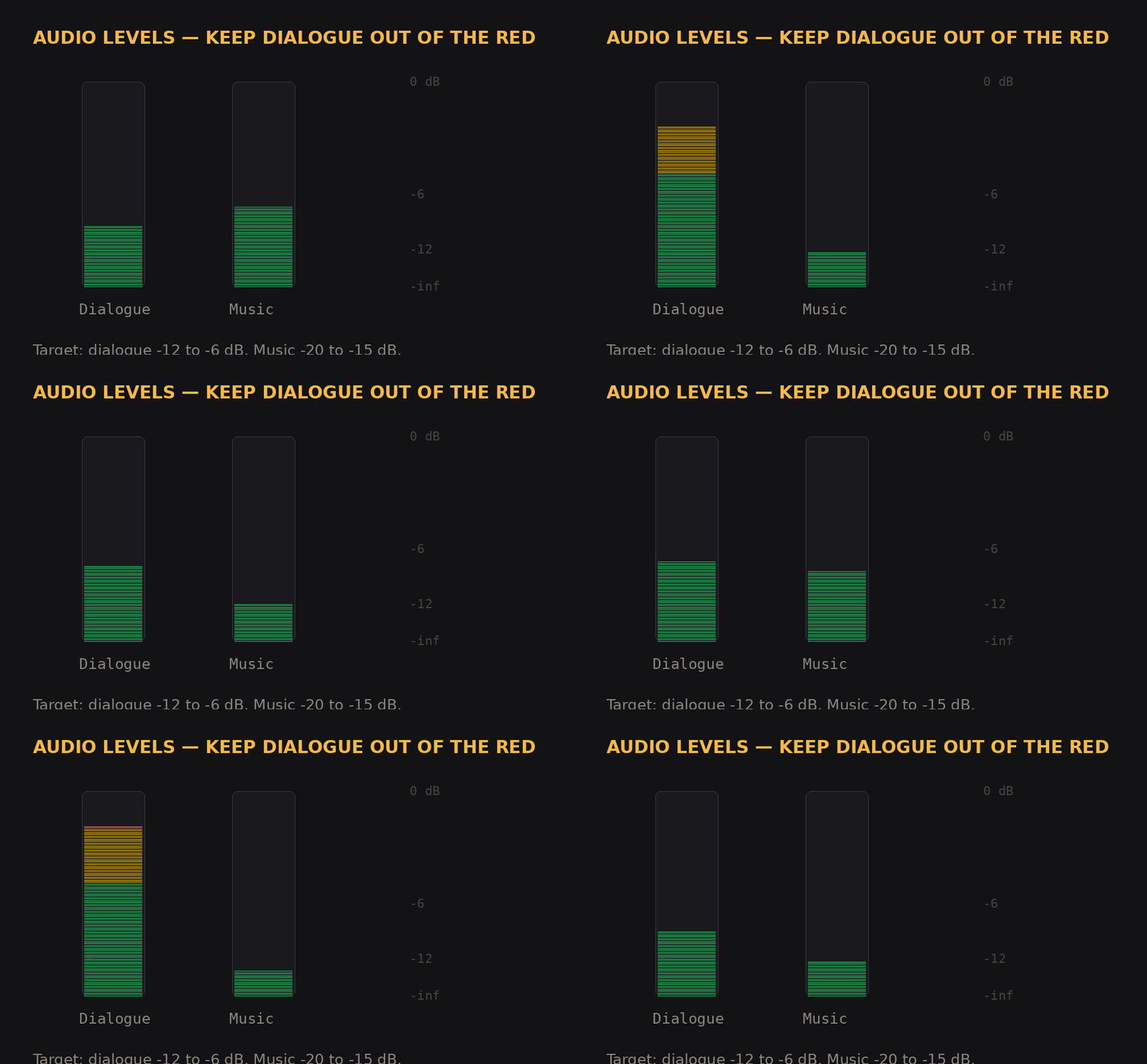
Adjust clip volumes so dialogue peaks at −12 dB to −6 dB. Background music should sit at −20 dB to −15 dB — barely noticeable. Use the audio mixer (Shift+9) for fine control.
Audio is 70% of the viewer experience. Bad audio kills good video.
8
Add titles and transitions
Add text overlays from Effects Library → Titles. For transitions, drag between clips. Use them sparingly — a Cross Dissolve at 12–20 frames is all you'll ever need. Avoid fancy transitions; they look amateur.
9
Export from the Deliver page
Go to Deliver (Shift+8). Choose a preset (YouTube or H.264 Master). Set output location to your Exports folder. Click Add to Render Queue, then Start Render. Done.
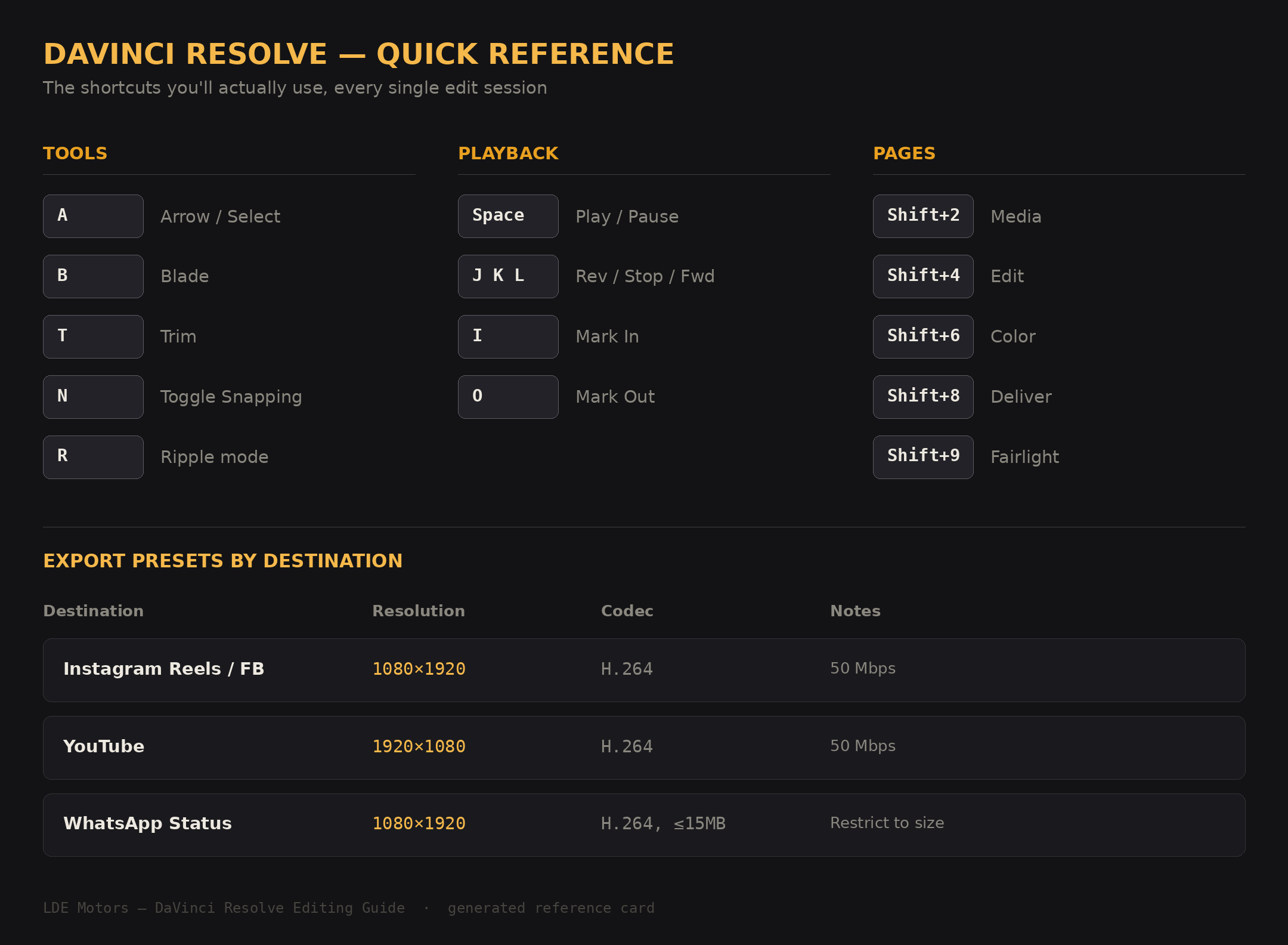
For YouTube: H.264, 1080p, 50 Mbps, AAC audio at 320 kbps.
Module 03

Editing Techniques

The actual moves you'll make every single day

Adding clips to the timeline

Method 01
Drag and Drop
Drag a clip from the Media Pool directly to the timeline. It lands wherever you drop it. Quickest method for rough assembly — just get everything on there first.
Method 02
Source Viewer with In/Out
Double-click a clip to open it in the Source Viewer. Press I to mark start, O to mark end. Press F9 (insert) or F10 (overwrite) to place only that section. Maximum precision before placing the clip.
Method 03
Append at End
With a clip selected in Media Pool, press Shift+F12 to add it to the end of your timeline. Good for fast assembly when you know you want every clip in sequence.

Trimming clips

Ripple Trim — the one you'll use most
Hover over the start or end of a clip until you see a red arrow. Drag to shorten or lengthen. Everything downstream moves automatically to close the gap. Use the Trim tool (T) for this. This is your primary trimming method.
Roll Edit
Move the edit point between two clips without changing overall duration. Hover exactly on the cut point between clips and drag. Total timeline length stays the same — you're shifting where the cut happens.
Slip Edit
Change which part of a clip is used without moving it on the timeline. Hold Shift and drag on a clip. Use when the duration is right but you want different frames from the same footage.

The Blade Tool — splitting clips

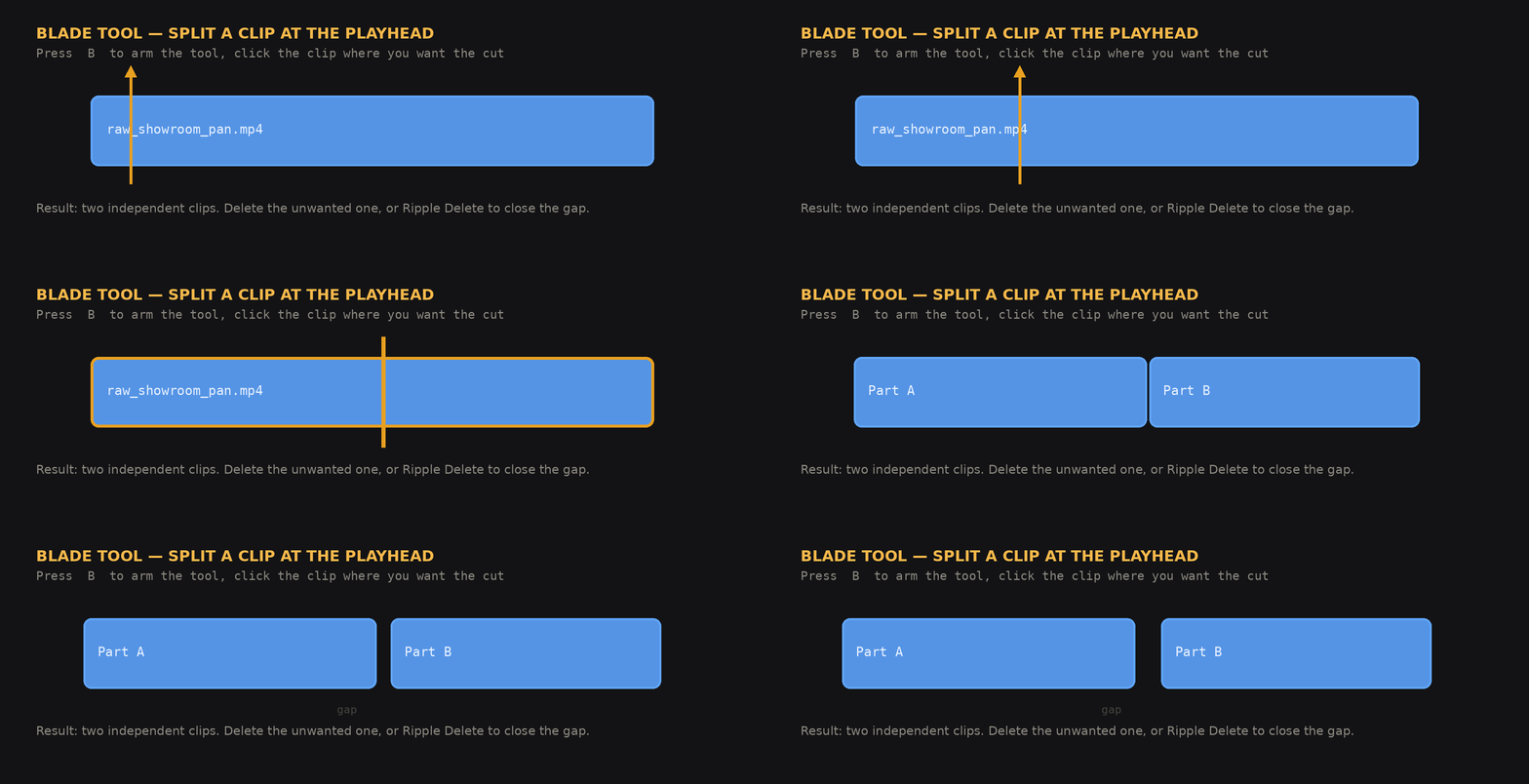
Press B to activate the Blade. Click anywhere on a clip to cut it in two. Press A to return to the selection tool. Select and delete the unwanted half. This is how you remove bad moments from the middle of a clip.

💡
Hold Shift+B to cut across all tracks simultaneously — essential when you have multiple synced tracks.

Gap and Ripple Delete

When you delete a clip, it can leave a gap (black screen). To remove the gap: right-click on it → Ripple Delete. Or: select a clip and press Backspace — leaves a gap. Press Shift+Backspace for ripple delete — no gap left behind.

Moving clips

With the Arrow tool (A): drag a clip left or right to reposition it in time. Drag up or down to move it to a different video track. Hold Ctrl/Cmd while dragging to disable snapping for fine placement.

Snapping and Timeline Zoom

Toggle snapping with N — makes clips snap to the edges of other clips and the playhead. Keep it on during assembly, turn it off for precise micro-adjustments. Hold Ctrl/Cmd + Scroll to zoom the timeline in/out, or press Shift+Z to fit everything on screen.

Module 04

Audio Basics

Getting your sound right without Fairlight

The Golden Level Rule

Dialogue / Voice — peak at −12 dB to −6 dB
Your primary audio. It should be clearly audible but not maxing out. Watch the audio meter (top-right of the screen) while playing back — peaks should sit in the yellow zone, never hit red.
Background Music — −20 dB to −15 dB
Music should sit under dialogue, not compete with it. Test: play both together. If you can make out every word of dialogue, the music level is right. If it feels too quiet with headphones — it's correct. It'll feel balanced on speakers.
Overall output — never above −1 dBFS
The loudest combined moment (all tracks together) should never hit 0 dBFS. Leave at least 1 dB of headroom. YouTube will auto-compress audio that's too loud, making it sound worse.

Adjusting volume on a clip

There's a thin horizontal line across every audio clip on the timeline — the volume rubber band. Drag it up to increase volume, down to decrease. The number shows the dB adjustment. You can also select a clip and use the Inspector to type an exact dB value.

Volume keyframes (fades)

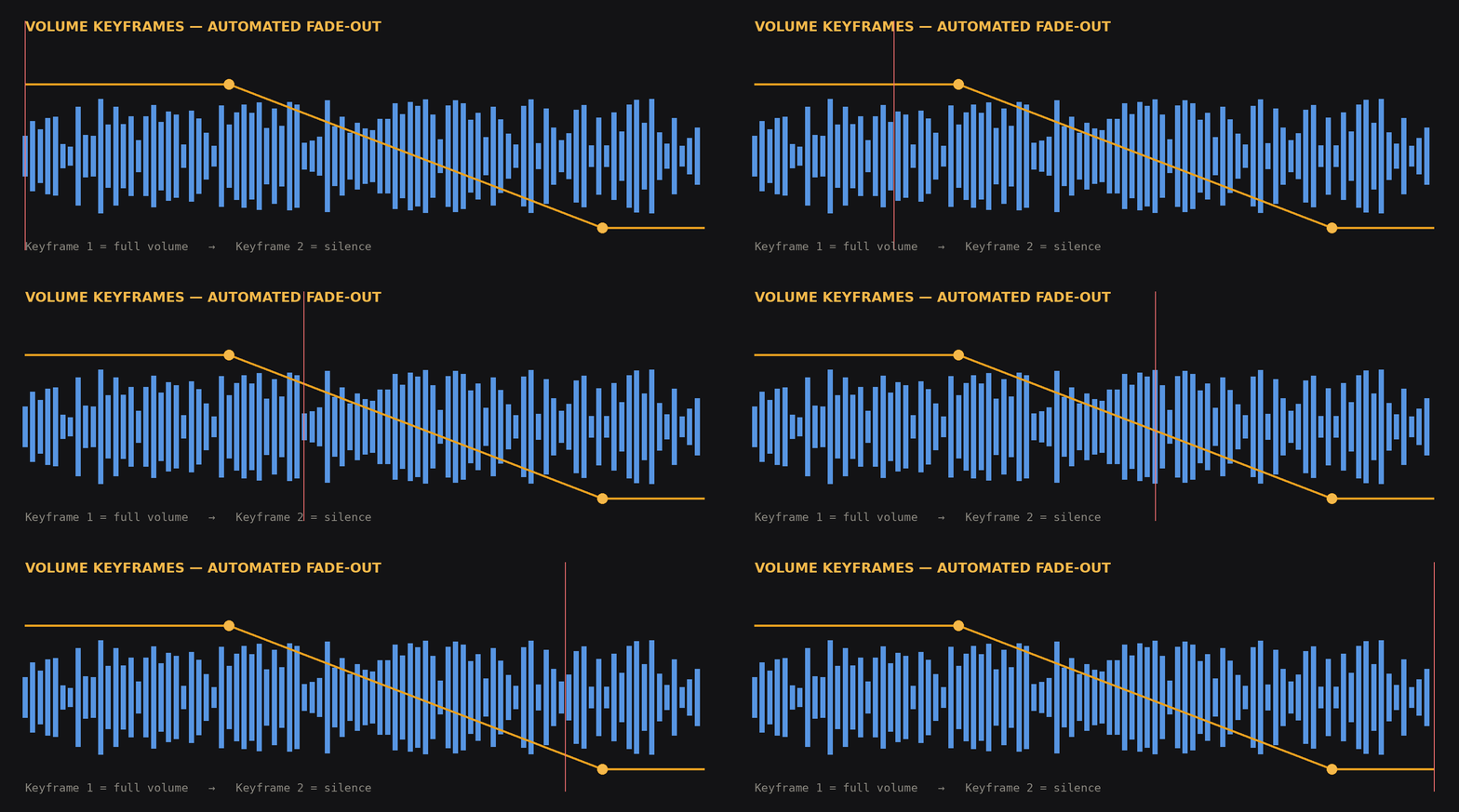
To fade music in or out: hover over the rubber band near the start/end of a clip. Hold Ctrl/Cmd and click to add a keyframe (a small diamond). Add two keyframes — one where the fade should start and one at the end. Drag the endpoint down to zero. Smooth fade created.

Linking and Unlinking audio/video

Camera clips have video and audio linked. To move just the audio (e.g., for lip-sync correction): right-click the clip → Link Clips to toggle off. Move the audio independently. Link again when done.

Muting tracks

Each track has a speaker icon on the left side. Click it to mute the entire track. Useful for mixing — mute the music to hear dialogue cleanly, then bring it back to check the balance.

Syncing separate audio

Place both the camera clip and external audio file on the timeline roughly aligned. Zoom in to the waveforms. Find a sharp sound (clap, door knock) that appears in both. Zoom in very close and drag the audio until the spikes visually align. Or right-click both clips → Auto-align Audio if you have a clear common reference point.

Module 06

Marketing Reels

Vertical video, branded titles, and export presets for LDE Motors

Everything in the previous modules applies here. This module covers the specific setup and workflow for making Instagram Reels, Facebook videos, and WhatsApp status clips for Royal Enfield, Bajaj, and Tata dealerships — vertical 9:16 format, branded lower thirds, and repeatable templates you build once and reuse forever.

Step 1 — Set up a vertical timeline correctly

Most phone footage is already vertical (1080×1920). The key mistake beginners make is creating a 1920×1080 horizontal project and trying to fit vertical footage into it. Instead:

1
Create a brand-specific project
In the Project Manager, create separate projects: LDE_RoyalEnfield, LDE_Bajaj, LDE_Tata. Don't mix brands in one project — each brand has different export colours, fonts, and templates. Keeping them separate saves confusion.
Folder on your drive: D:\LDE_Editing\RoyalEnfield\Footage — one folder per brand.
2
Set timeline to 1080×1920 before importing anything
Go to File → Project Settings → Master Settings. Set Timeline Resolution to 1080 × 1920 (custom). Set Frame Rate to 30fps for Reels (Instagram's preferred rate). Do this before creating a timeline — changing it after causes all your clips to reformat incorrectly.
If your footage is 60fps (slow motion), keep it at 60fps project setting to preserve the slow-mo effect. Export at 30fps from the Deliver page separately.
3
Handle horizontal footage
Some clips — DSLR or laptop cam footage — will be horizontal (16:9) dropped into a vertical timeline. It'll show with black bars on the sides. Two options: (a) Select the clip → Inspector → Scale up until it fills the frame (loses some edges, fine for bike footage). (b) Keep the bars and add a blurred background — more work but looks intentional. Option (a) is faster and fine for marketing content.

Step 2 — Build your branded title templates

The most time-consuming part of Reels editing is adding text. The fix is to build your templates once and save them to a Power Bin so they're available across all future projects without rebuilding.

These are the four text overlays you'll use repeatedly across all LDE brands:

Template 01 — Lower Third
Dealership Name + Tagline
Sits at the bottom of the frame. Identifies the brand and city. Shows in the first 2 seconds of a reel. Example: "LDE Royal Enfield | Lucknow".
Effects Library → Toolbox → Titles → Text+ (drag to timeline above V1)
Inspector → Title tab → type your dealership name
Set font, size, color to match brand. Position at Y = −350 (lower third area)
Right-click clip in timeline → Copy → go to Power Bins → Paste. Now it's saved forever.
Template 02 — Price/Offer Card
Price Callout
Mid-frame text showing price, EMI, or offer. High visibility. Example: "Starting ₹1.89 Lakh" or "EMI से ₹5,299/month".
Use Text+ or a Fusion Title for this — Text+ supports large bold numbers well
Set font weight to Bold/Black, size large (120–180px depending on length)
Use brand accent colour — RE uses red (#E31937), Bajaj uses blue, Tata uses dark navy
Save to Power Bins. Next time: drag from Power Bin, double-click, change the number only.
Template 03 — CTA Card
Call to Action
Final 2–3 seconds of the reel. Tells viewers what to do. "Call Now · Visit Showroom · DM for Details".
Create a solid colour background clip (Effects → Generator → Solid Color) as the base
Layer Text+ on top with your CTA text and phone number
Save the entire 3-second group (Ctrl+G to group, or just select both clips and save to Power Bins)
For WhatsApp reels: keep phone number always visible in CTA. For Instagram: add in caption instead.
Template 04 — Offer Banner
Limited Period / Festival Offer
Top-of-frame banner for time-sensitive offers. "Diwali Offer" / "Exchange Bonus ₹15,000" / "Free Accessories Worth ₹5,000".
Use a narrow semi-transparent rectangle (Fusion → Background node + Rectangle mask) as the banner background
Or simpler: use a Title template that has a coloured backing strip — search "lower third" in Effects Library
Position at Y = +750 (top third of vertical frame)
Keep text short — 3–5 words max. Viewers are scrolling fast.
💡
Power Bins — the most important thing in this module. Go to View → Show Power Bins. This creates a bin that persists across ALL projects. Save your finished templates here. When you start a new reel next week, drag your template from Power Bins to the new timeline — you're editing text in 10 seconds instead of rebuilding from scratch every time.

Step 3 — Reel structure that actually performs

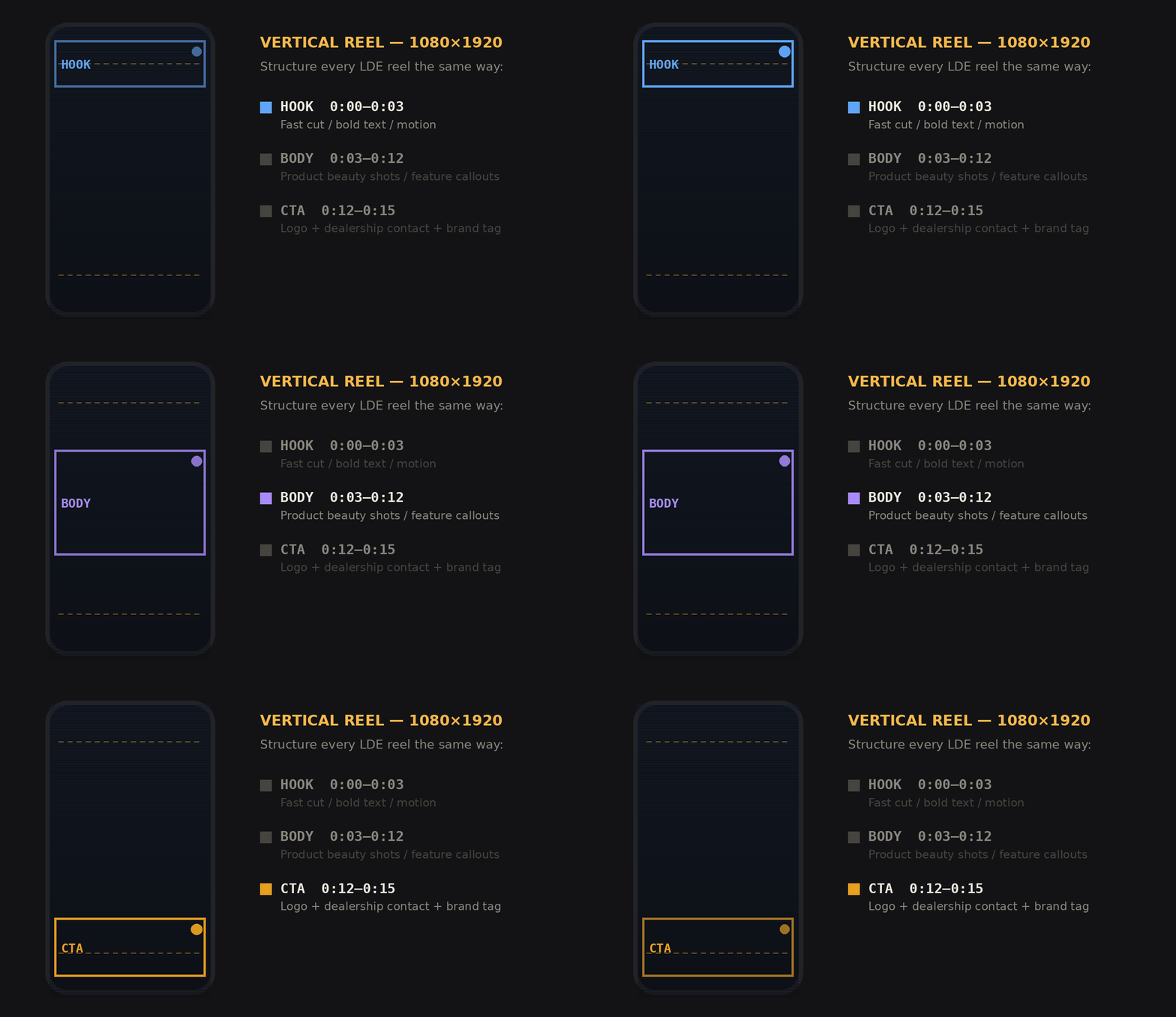
For dealership Reels, a proven structure is:

1
Hook — 0 to 2 seconds
Best visual moment of the whole clip. Moving bike, engine start, customer reaction, dramatic reveal. No text in this moment — let the visual hook first. The algorithm judges if viewers stay past 2 seconds.
2
Body — 2 to 25 seconds
Main content. For a showcase reel: 3–5 clips of the vehicle from different angles. For a testimonial: customer speaking. For an offer: price callout + product shots. Add lower third here (dealership name). Add price card here.
3
CTA — Last 3 seconds
Hard cut (no transition) to your CTA card. Keep it still — no motion in CTA, viewers need time to read. Include phone number or "DM for Details". Freeze on this frame or let it loop if posting as a Story.
Total reel length: 15–30 seconds performs best for Indian automotive Instagram. Under 15 is too fast. Over 45 loses most viewers.

Step 4 — Export presets by platform

Go to Deliver (Shift+8). Use these settings for each platform — don't use the YouTube preset for Instagram, the bitrate and container are wrong.

Platform Resolution Format Codec Bitrate Notes
Instagram Reels 1080×1920 MP4 H.264 15 Mbps 30fps. Instagram re-encodes anyway but give it high quality input.
Facebook Video 1080×1920 or 1920×1080 MP4 H.264 8–12 Mbps Vertical for mobile feed. Horizontal for desktop/page.
WhatsApp Status 1080×1920 MP4 H.264 Restrict to 16MB file WhatsApp has a 16MB limit. Lower bitrate until file is under 16MB. Use "Restrict to" in Deliver.
YouTube Shorts 1080×1920 MP4 H.264 15 Mbps Same as Reels. Keep under 60 seconds for Shorts classification.
Local archive 1080×1920 MP4 H.265 25 Mbps Master copy for your records. H.265 = smaller file, same quality. Don't upload this version.
📁
Export naming convention suggestion: RE_BikeShowcase_Jun2025_IG.mp4 — Brand prefix, content type, month-year, platform. Makes it easy to find when you're managing content for three brands simultaneously.

Office workflow — what to do when you can't edit

Since Resolve won't open on the office PC, your office time still contributes to editing output. These tasks require no software:

Clip Selection & Script
Watch WhatsApp videos / downloaded footage on your phone or browser. Note which clips to use, roughly in what order, and what text to show. Write the text for all four templates (lower third, price, CTA, banner) before opening Resolve at home. When the session starts, decisions are already made — you just execute.
File Organisation
Download and sort raw footage into the correct brand folder structure on a USB or Google Drive. Transfer to your laptop when you're home. Resolve can't work well with files on Google Drive directly — always copy to local storage first.
Caption & Hashtag Writing
Write the Instagram/Facebook caption, hashtags, and posting schedule while at office. This is often the bottleneck after the video is done. Doing it in parallel means you post within minutes of rendering completing.
Module 07

Your Learning Roadmap

Week by week — built for your actual situation, not a generic beginner

This roadmap is written for someone who: edits on a home laptop (evenings/weekends), can't access Resolve at office, wants to produce marketing Reels for three dealership brands as fast as possible, and is starting from zero editing experience.

🎯
Core principle: You don't need to learn all of DaVinci Resolve. You need to learn the 20% that produces 100% of your marketing output. This roadmap cuts everything that doesn't serve that goal. Fusion, color grading, Fairlight — you'll get to these later, but not yet.
Week 1
First Real Edit
~3–4 hrs total
Install Resolve. Set GPU to CUDA in Preferences. Create one practice project named "Practice_Week1".
Read the Interface tab of this guide. Click every zone. Don't memorise — just get familiar.
Create a 1080×1920 vertical timeline. Import 3 WhatsApp clips of any bike or vehicle.
Cut them together in order using B (blade) and Shift+Backspace (ripple delete). Export as MP4.
Goal: a rough 15-second clip with no text. Just cuts. See that the export actually works.
Skip: Color page, Fusion, Fairlight, audio mixing precision — none of this yet.
✓ Milestone: First export file on your desktop
Week 2
Titles & Templates
~4–5 hrs total
Learn the Effects Library. Find Toolbox → Titles. Drag Text+ onto the timeline above V1.
Build your first Lower Third for LDE Royal Enfield. Adjust font, size, color, position in Inspector.
Enable Power Bins (View → Show Power Bins). Save your lower third there.
Build your Price Callout template. Save to Power Bins. Now you have 2 reusable templates.
Produce one real reel: Royal Enfield bike showcase with lower third + price card. Export for Instagram.
Skip: Animated text (Fusion), transitions (use straight cuts), audio beyond basic volume.
✓ Milestone: First branded reel posted to LDE RE Instagram
Week 3–4
Speed & Consistency
~2 hrs/week
Build the remaining two templates: CTA card and Offer Banner. Save both to Power Bins.
Produce reels for all three brands. Time yourself — goal is under 45 minutes per reel including export.
Learn keyboard shortcuts you're actually using. J-K-L for scrubbing. Ctrl+Z constantly. N for snapping.
Learn audio: mute camera audio if it's bad, add a background music track at −18dB. That's it for now.
Start your office planning habit: script the next reel during lunch, edit in the evening. 30-min sessions are enough.
Skip: Anything that's not directly needed for the reel you're making this week.
✓ Milestone: Can produce a branded reel in under 45 minutes
Month 2
Fusion Basics
1 dedicated session
Watch one YouTube video specifically: "DaVinci Resolve Fusion animated text beginner 2024" — pick one, follow it entirely, don't jump between videos.
Learn to animate text: fade in on first frame, hold, fade out. This is done with keyframes in Fusion, not the timeline.
Apply an animated lower third to one real reel. Compare it to your static version — is it actually better? Often it isn't.
If animated text helps, update your Power Bin template. If it's more work for no visible improvement, skip it and return later.
Skip: Complex Fusion compositing, node networks beyond text animation.
✓ Milestone: One reel with animated text that looks intentional, not flashy
Month 2–3
Basic Color
Learn once, apply always
Learn just three things in the Color page: Lift (shadows), Gamma (midtones), Gain (highlights). These three sliders fix 90% of phone footage colour problems.
For RE bike footage: slight contrast boost, deepen the reds slightly. For Tata truck footage: cooler tones look more professional/industrial.
Learn to save a "LDE RE Grade" and "LDE Tata Grade" as stills or Power Grades. Apply consistently across all footage from the same brand shoot.
Don't spend more than 5 minutes on color per reel at this stage. It should be: apply grade, check, move on.
Skip: Curves, qualifiers, secondary corrections, scopes — all of these come much later.
✓ Milestone: Consistent look across all RE reels, different from Bajaj and Tata
Month 3–6
Advanced & Efficient
Ongoing
Learn Cut page — it's faster than Edit page for simple assembly. Use it as your first-pass tool, then refine in Edit page.
Learn to use Resolve's speed change: right-click a clip → Change Speed. Useful for slow-motion highlights on bike footage.
Explore dynamic zooms (Ken Burns effect) via the Inspector's keyframe-animated Zoom/Position. Adds motion to static phone photos.
Look into testimonial editing: how to cut between questions and answers smoothly, how to handle ambient noise between cuts.
By this point: you have a system. Reels take 20–30 minutes. Templates are reused. The quality plateau you hit is content and creative decisions, not software skill.
✓ Milestone: Producing 3–4 reels/week across brands without it feeling like a burden

Things to permanently skip (for your use case)

Fairlight Page — Audio Engineering
A full digital audio workstation built into Resolve. Designed for film mixing engineers. For marketing reels where you're adjusting volume and adding one music track — the rubber band on the Edit page is all you need. Fairlight adds nothing to your workflow.
4K Projects
Your laptop can technically handle 4K but it'll be slower. Your footage is phone video — it's 1080p or at most 4K compressed heavily by WhatsApp. There's no quality gain from working in 4K. Stay at 1080×1920.
Complex Fusion Compositing
3D text, particle effects, motion tracking, green screen — these are for YouTube creators and filmmakers. For dealership marketing, simple static or fade-in text is more professional than flashy effects. Clients trust clean over clever.
The Cut Page (initially)
The Cut page is actually excellent once you know it, but it has a different logic to the Edit page and learning two systems at once is confusing. Learn Edit page completely first, then visit Cut page in Month 3–4 when you want to speed up assembly.

The real skill this roadmap is building

Video editing skill is 30% software knowledge and 70% editorial judgment — knowing which clip to use, where to cut, how long to hold a shot, what text says enough without saying too much. The software part plateaus fast. The editorial part improves with every single reel you make.

Every reel you publish is a lesson. What got good engagement? What felt too slow? What text was too small on mobile? These answers come from posting and watching, not from studying. The roadmap above gets you to "posting consistently" as fast as possible, because that's where the real learning happens.

Reference

Keyboard Shortcuts

The 40 shortcuts that cover 95% of editing work

Playback
Play / Pause
Space
Play backwards
J
Stop
K
Play forwards
L
1 frame back
1 frame forward
Previous edit point
Next edit point
Go to start
Home
Go to end
End
Editing Tools
Selection tool
A
Blade tool
B
Trim tool
T
Dynamic trim
W
Blade all tracks
ShiftB
Split clip
CtrlB
Ripple delete
Shift
Toggle snapping
N
Timeline
Zoom in
+
Zoom out
Fit to window
ShiftZ
Mark In point
I
Mark Out point
O
Clear In
AltI
Clear Out
AltO
Select all clips
CtrlA
General
Undo
CtrlZ
Redo
CtrlY
Save project
CtrlS
Import media
CtrlI
Edit page
Shift4
Color page
Shift6
Deliver page
Shift8
Full screen viewer
Shift`
Markers
Add marker
M
Modify marker
ShiftM
Delete marker
AltM
Next marker
Shift
Inserting Clips
Insert clip
F9
Overwrite clip
F10
Replace clip
F11
Append at end
ShiftF12
🎯
On Mac, swap Ctrl → Cmd for all shortcuts. The J-K-L playback keys are the most important to memorise — professionals use them constantly to scrub through footage quickly. Press L multiple times to increase playback speed.
Test Yourself

Knowledge Check

13 questions — fundamentals + marketing reels

0 / 10
Question 01 of 10
What does pressing B activate in DaVinci Resolve?
Question 02 of 10
After importing footage, you move the files to a new folder on your computer. What happens?
Question 03 of 10
What is a Ripple Delete?
Question 04 of 10
In the Edit page, what is the Inspector used for?
Question 05 of 10
What is the target dB level for dialogue/voiceover in your video?
Question 06 of 10
What keyboard shortcut takes you to the Deliver page to export your video?
Question 07 of 10
Which keyboard shortcut marks an In point in the Source Viewer?
Question 08 of 10
Higher video tracks (V2, V3) vs lower tracks (V1). Which is visible when they overlap?
Question 09 of 10
What should you do FIRST before opening DaVinci Resolve for a new project?
Question 10 of 10
What does pressing N toggle in DaVinci Resolve?
Question 11 of 13
What resolution should you set for an Instagram Reels / vertical video timeline?
Question 12 of 13
What is a Power Bin in DaVinci Resolve?
Question 13 of 13
WhatsApp has a video file size limit. Which Deliver setting helps you stay under it?
Reference

Glossary

Every term you'll encounter, plainly explained

Bin
A folder inside the Media Pool used to organise your footage. Create bins for "Interviews", "B-Roll", "Music" etc.
Clip
A single piece of media — a video file, audio file, or still image — placed on the timeline.
Cut
The most basic edit: one clip ends and the next begins instantly. No transition. Used 90%+ of the time by professionals.
Cross Dissolve
A transition where one clip fades out as the next fades in. Use sparingly. Drag from Effects Library between two clips.
dBFS
Decibels Full Scale. How digital audio levels are measured. 0 dBFS is the maximum before distortion. Keep dialogue at −12 to −6 dBFS.
Deliver Page
The DaVinci Resolve page (Shift+8) where you configure and start the export/render of your finished video.
Edit Point
The boundary between two clips on the timeline — where one ends and the next begins. Press ↑/↓ to jump between edit points.
Fairlight
DaVinci Resolve's dedicated audio editing page. A full DAW built into Resolve. Not needed for basic audio work.
Frame
One single still image in a video. At 25fps, there are 25 frames per second. Cutting one frame earlier or later can significantly change the feel of an edit.
Frame Rate (fps)
How many frames are shown per second. Common values: 24fps (cinematic), 25fps (PAL/most of world), 30fps (NTSC/US content), 60fps (smooth/sport).
Gap
Empty space on the timeline between clips. Shows as black in the viewer. Remove gaps with Ripple Delete or right-click → Close Gap.
H.264 / H.265
Video compression codecs. H.264 is the standard for web/YouTube delivery. H.265 is newer, smaller file size, but slower to export. Use H.264 for most exports.
Inspector
The panel (top-right in Edit page) showing all adjustable properties of the selected clip: position, scale, rotation, opacity, audio volume.
In / Out Points
Markers you set in the Source Viewer (I and O) to define which part of a clip to use before adding it to the timeline.
J-K-L Keys
Playback controls: J = play backwards, K = stop, L = play forwards. Pressing L multiple times increases speed. Essential for scrubbing through footage fast.
Keyframe
A point in time on a clip where you set a specific value (e.g. volume = 0). Resolve smoothly interpolates between keyframes, creating fades or animation.
Media Pool
The panel where all imported media lives, organised into bins. Like a project library. Everything starts here before going to the timeline.
Offline Media
When Resolve can't find the original file for a clip — usually because you moved or renamed the file after importing. Clips show as red. Fix via right-click → Relink.
Overwrite vs Insert Edit
Overwrite (F10) replaces existing timeline content with the new clip. Insert (F9) pushes everything along to make room. Insert preserves what's already there.
Page
DaVinci Resolve's major workspaces accessed via the bottom bar: Media, Cut, Edit, Fusion, Color, Fairlight, Deliver. Each is a specialised environment.
Playhead
The red vertical line on the timeline that shows your current position. The viewer shows the frame at the playhead position.
Proxy Media
Low-resolution copies of your footage that Resolve can play back smoothly on slower computers. Renders at full quality on export. Enable in Preferences → System.
Render Queue
The list of export jobs in the Deliver page. Add multiple exports, then click "Start Render" to process them all in one go.
Resolution
The pixel dimensions of your video. 1920×1080 = 1080p HD. 3840×2160 = 4K UHD. Set in Project Settings before starting.
Ripple Trim / Ripple Delete
Editing actions that automatically close gaps. Ripple trim shortens a clip and pulls everything downstream back. Ripple delete removes a clip and closes the gap.
Roll Edit
Moving an edit point between two clips without changing overall timeline duration. One clip gets longer as the adjacent one gets shorter by the same amount.
Rough Cut
The first messy pass of an edit where you lay out content in rough order without worrying about precise timing. Always your starting point.
Slip Edit
Changing which frames of a clip appear on the timeline without moving the clip or changing its duration. Like sliding the content inside a fixed window.
Snapping
A feature (toggle with N) that makes clips magnetically stick to the edges of other clips, markers, and the playhead for precise alignment.
Source Viewer
The left viewer in the Edit page for previewing individual clips from the Media Pool before adding them to the timeline. Set In/Out points here.
Timeline
The main editing area where clips are arranged horizontally to form your video. Video tracks (V1, V2…) on top, audio tracks (A1, A2…) below.
Timecode
A timestamp displayed as HH:MM:SS:FF (hours, minutes, seconds, frames). Used to navigate precisely to a specific moment in your timeline.
Title
A text overlay clip placed on a video track above your footage (V2 or higher). Added from Effects Library → Toolbox → Titles. Edited in the Inspector.
Track
A horizontal lane in the timeline. Video tracks (V1, V2…) stack vertically — higher tracks appear on top. Audio tracks (A1, A2…) are below the video tracks.
Transition
An effect between two clips (e.g. Cross Dissolve, Wipe). Added by dragging from the Effects Library onto an edit point. Use rarely — a straight cut is usually cleaner.
Volume Rubber Band
The thin horizontal line across every audio clip on the timeline. Drag up/down to adjust clip volume. Ctrl/Cmd+click to add keyframes for fades.
Waveform
The visual representation of audio — the jagged shape inside audio clips on the timeline. Taller = louder. Use it to find specific sounds when syncing audio.
Fusion
DaVinci Resolve's built-in visual effects and motion graphics page (Shift+5). Uses a node-based system to create animated text, transitions, and compositing effects. Start here in Month 2 — not before.
Power Bin
A special bin (View → Show Power Bins) that persists across all Resolve projects. Save your branded title templates here once — they're available in every future project. The single biggest time-saver for repeat content creators.
Lower Third
A text overlay positioned in the lower third of the video frame, typically showing a name, brand, or location. Standard format for dealership branding: "LDE Royal Enfield | Lucknow". Built from a Text+ clip in the Titles section of the Effects Library.
Vertical Timeline (9:16)
A project/timeline set to 1080×1920 pixels — portrait orientation for Instagram Reels, YouTube Shorts, WhatsApp Status. Set in Project Settings → Master Settings → Timeline Resolution before creating your first timeline.
Text+
A Resolve title generator (found in Effects Library → Toolbox → Titles) that supports more customisation than basic Text. Supports Fusion integration for animation. The standard choice for lower thirds and title overlays.
Volume Rubber Band
The thin horizontal line across every audio clip on the timeline. Drag up/down to adjust clip volume. Ctrl/Cmd+click to add keyframes for fades.
Restrict to (File Size)
A Deliver page setting that caps the exported file to a specified size in MB. Essential for WhatsApp (16MB limit). Resolve automatically adjusts bitrate to hit the target size.
CUDA
NVIDIA's GPU acceleration framework used by DaVinci Resolve. Enable in Preferences → System → Memory and GPU. With a GTX 1650, using CUDA instead of CPU processing makes playback and rendering significantly faster.